Git Version Control
The SCTA libraries are stored on the AMCLAB server in the form of a Git repository. Git is a Version Control System that developers use to store historical snapshots of code throughout its lifetime. We use Git to store the most updated version of the SCTA libraries as well as previous working versions. In this tutorial, you will be downloading the most recent version of SCTA through Git.
Note
The following installation instructions are for Windows PCs only! Installing Git on Ubuntu should be as simple as an apt-get install git command.
Installing Git
Go to the downloads page at the Git website.
Choose the appropriate installer for your OS. For Windows, it should download an executable. Run it, and click Yes when asking to allow changes to the computer.

In the Git Setup service, use the default installation destination, components, start menu shortcuts, PATH environment, line ending conversions, terminal emulator, and extra options. The installation should be quick.
Cloning the SCTA Libraries
In programs, open Git Bash.
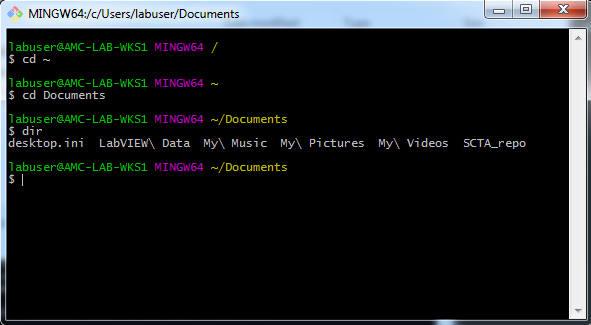
Use Git Bash like any other Command Prompt or Terminal application. It defaults to the computer’s root directory, but you can change directories using cd and list directory contents using dir. For example, change to your Documents directory:
cd ~\Documents\
Beyond the default shell commands, Git Bash also has Git commands built-in. To see a list of all available commands run:
git --help
Note
To run the following commands, you must be on the same network as the AMCLAB server. You must also know the AMCLAB server password. Ask someone from the lab for access.
To “download” the SCTA libraries, we will use Git to clone the SCTA repository from the AMCLAB server to our local machine:
git clone amclab@10.23.121.10:~/amclab-git/SCTA_repo.git
If prompted to trust the authenticity of amclab, enter “yes”. When prompted for a password, enter the password. After doing the clone, you should see a new directory called SCTA_repo.

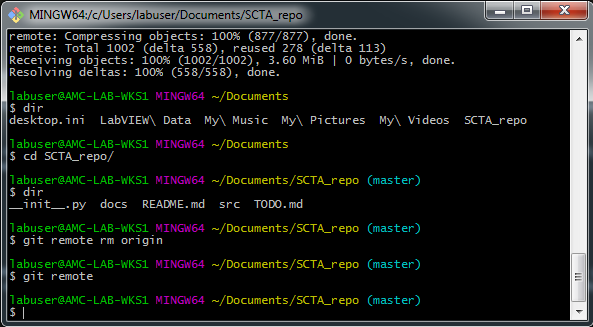
If you change into the SCTA_repo directory, you should see a README file that explains the contents of the repository. You should also see the prompt is “decorated” with (master). This refers to the current Git branch any of your commit s will be saved to. However, this is beyond the scope of this tutorial.

Hint
However, we highly recommend you come back to this later and use Git Version Control utilities when working on any serious programming project. There are several Git tutorials that show you how to view historical changes.
To be safe, remove the AMCLAB server’s original repository address so that you won’t ever accidentally write changes to the master copy of our SCTA libraries:
git remote rm origin
If you run the git remote command, nothing should be printed to the prompt.